This is default featured post 1 title

Go to Blogger edit html and find these sentences.Now replace these sentences with your own descriptions.This theme is Bloggerized by Lasantha Bandara - Premiumbloggertemplates.com.

This is default featured post 2 title

Go to Blogger edit html and find these sentences.Now replace these sentences with your own descriptions.This theme is Bloggerized by Lasantha Bandara - Premiumbloggertemplates.com.

This is default featured post 3 title

Go to Blogger edit html and find these sentences.Now replace these sentences with your own descriptions.This theme is Bloggerized by Lasantha Bandara - Premiumbloggertemplates.com.

This is default featured post 4 title

Go to Blogger edit html and find these sentences.Now replace these sentences with your own descriptions.This theme is Bloggerized by Lasantha Bandara - Premiumbloggertemplates.com.

This is default featured post 5 title

Go to Blogger edit html and find these sentences.Now replace these sentences with your own descriptions.This theme is Bloggerized by Lasantha Bandara - Premiumbloggertemplates.com.

Showing posts with label CSharp Sample Code. Show all posts

Thursday, November 10, 2011

Add Dynamic Controls Buttons In Windows Forms Winforms And Event Handling


Adding buttons controls dynamically at runtime and Event Handling In windows forms or Winforms applications in .net 2.0,3,5.

many times we need to create controls at runtime or through code behind depending on the real time scenario.

In this post i am going to explain how to add dynamic buttons at runtime and handle the Button Click event in winforms or windows forms applications.

I am creating 3 buttons on Form_Load event and placing them on the form.


Write this code in Load event of windows form.

C# Code

private void Form1_Load(object sender, EventArgs e)
        {
            int x = 50, y = 50;
            for (int i = 1; i <= 3; i++)
            {
                Button btnDynamic = new Button();
                btnDynamic.Location = new System.Drawing.Point(x, y);
                btnDynamic.Name = " Dynamic Button " + i;
                btnDynamic.Size = new System.Drawing.Size(100, 50);
                btnDynamic.Text = btnDynamic.Name;
                Controls.Add(btnDynamic);
                x += 100;
                btnDynamic.Click += new EventHandler(this.DynamicButtonClick);
            }
            
        }

Here x and y are horizontal and vertical cordinates where dynamically created buttons will be placed.

x is incremented by 100 each time so that buttons don't get placed overlapped.

when button is created, eventhandler for Click Event of button is associated with it in last line of above mentioned method.

Now write below mentioned method signature in the code behind


private void DynamicButtonClick(object sender, EventArgs e)
   {

   }


Method name must be exactly the same u mentioned in eventhandling code, as It's case sensitive. Write this code inside this method

private void DynamicButtonClick(object sender, EventArgs e)
        {
            Button btnDynamic = (Button)sender;
            btnDynamic.Text = "You Clicked" + btnDynamic.Name;
                      
        }


VB Code

Private Sub Form1_Load(sender As Object, e As EventArgs)
 Dim x As Integer = 50, y As Integer = 50
 For i As Integer = 1 To 3
  Dim btnDynamic As New Button()
  btnDynamic.Location = New System.Drawing.Point(x, y)
  btnDynamic.Name = " Dynamic Button " & i
  btnDynamic.Size = New System.Drawing.Size(100, 50)
  btnDynamic.Text = btnDynamic.Name
  Controls.Add(btnDynamic)
  x += 100
  btnDynamic.Click += New EventHandler(AddressOf Me.DynamicButtonClick)
 Next

End Sub

Private Sub DynamicButtonClick(sender As Object, e As EventArgs)
 Dim btnDynamic As Button = DirectCast(sender, Button)
 btnDynamic.Text = "You Clicked" + btnDynamic.Name

End Sub

Numeric Number Only TextBox JavaScript RegularExpression Validator


Numeric or Number Only TextBox Using JavaScript or RegularExpressionValidator.

In this example i am going to decsribe how create Numeric or Number only textbox using javascript or regular expression Validator which accept only numbers in asp.net web page.


1. Number only textbox using javascript.

Go to html source of aspx page and write below mentioned script in head section of page.


Call this function in onKeyPress event of textbox.
Write this code in html source of textbox.


<asp:TextBox ID="TextBox2" runat="server" 
             onKeyPress="return numberOnlyExample();">
asp:TextBox>


We can also do this programmetically in code behind like this.

on Page_Load event of page add onKeyPress attribute to textbox and call the function to accept only numerics.

protected void Page_Load(object sender, EventArgs e)
    {
       TextBox2.Attributes.Add("onkeypress", "return ((window.event.keyCode >= 48 && window.event.keyCode <= 58))");
    }


2. Creating Numeric or Number only textbox using Regular Expression Validator.

Drag and place RegularExpressionValidator control on aspx page and set it's properties as mentioned below in html code.

Set ControlToValidate property to textbox1.
Set ValidationExpression.
Set ErrorMessage.

HTML Source


<asp:RegularExpressionValidator 
     ID="RegularExpressionValidator1" 
     runat="server" 
     ControlToValidate="TextBox1"
     ErrorMessage="Please Enter only Numbers" 
     ValidationExpression="\d+">
asp:RegularExpressionValidator>


ErrorProvider In WinForms And Windows Forms


ErrorProvider In WinForms or Windows Forms application using C# and VB.NET


In this post i am going to describe how to use error provider control in winforms or windows forms application using C# and VB.NET.


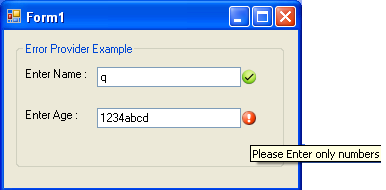
I am using error provider control to display warning or tick icon depending on data entered in textbox so that user can find out text entered is correct or incorrect.

in first textbox i am just checking whether it's empty or not.

Second textbox is numeric only, user can enter only numbers in this and if anything other than number is entered, error provider will show warning icon beside textbox with tooltip containing suggestion.
I have used regular expression to check textbox text for numbers.


For this i have created a simple winform application with 2 textbox on windows forms. follow steps mentioned below for this example.

1. Create new windows application in visual studio.

2. On the form place 2 textbox and 2 errorprovider control from toolbox.

I m using 2 errorproviders, one to display warning icon and other to displat tick or success icon.


Add this namespace in code behind of form to use regex.

using System.Text.RegularExpressions;

now generate Validated or Validating event for both textboxes by opening property windows of textbox and clicking on lightning icon (Events) at the top of window. from there scroll to bottom and double click on validating. it will generate validating event for textbox in code behind.

Write code mentioned below in events generated.
C# code
private void textBox1_Validating(object sender, CancelEventArgs e)  
        {
            if (textBox1.Text == string.Empty)
            {
                errorProvider1.SetError(textBox1, "Please Enter Name");
                errorProvider2.SetError(textBox1, "");
            }
            else
            {
                errorProvider1.SetError(textBox1, "");
                errorProvider2.SetError(textBox1, "correct");
            }
        }

        private void textBox2_Validated(object sender, EventArgs e)
            {
            if (textBox2.Text == string.Empty)
            {
                errorProvider1.SetError(textBox2, "please enter age");
                errorProvider2.SetError(textBox2, "");
            }
            else
            {
                Regex NumericOnly;
                NumericOnly = new Regex(@"^([0-9]*|\d*)$");
                if (NumericOnly.IsMatch(textBox2.Text))
                {
                    errorProvider1.SetError(textBox2, "");
                    errorProvider2.SetError(textBox2, "correct");
                }
                else
                {
                    errorProvider1.SetError(textBox2, "Please Enter only numbers");
                    errorProvider2.SetError(textBox2, "");
                }
            }
        }


VB.NET Code

Private Sub textBox1_Validating(sender As Object, e As CancelEventArgs)
 If textBox1.Text = String.Empty Then
  errorProvider1.SetError(textBox1, "Please Enter Name")
  errorProvider2.SetError(textBox1, "")
 Else
  errorProvider1.SetError(textBox1, "")
  errorProvider2.SetError(textBox1, "correct")
 End If
End Sub

Private Sub textBox2_Validated(sender As Object, e As EventArgs)
 If textBox2.Text = String.Empty Then
  errorProvider1.SetError(textBox2, "please enter age")
  errorProvider2.SetError(textBox2, "")
 Else
  Dim NumericOnly As Regex
  NumericOnly = New Regex("^([0-9]*|\d*)$")
  If NumericOnly.IsMatch(textBox2.Text) Then
   errorProvider1.SetError(textBox2, "")
   errorProvider2.SetError(textBox2, "correct")
  Else
   errorProvider1.SetError(textBox2, "Please Enter only numbers")
   errorProvider2.SetError(textBox2, "")
  End If
 End If
End Sub
Build and run the application.


Share

Twitter Delicious Facebook Digg Stumbleupon Favorites More